
TL;DR
What if AI agents could not only write code but also organize your workspace? Morph Agent is a VSCode extension that lets AI control your editor layout through natural language. It’s a proof of concept demonstrating a powerful principle: agents should be able to manipulate the ambient environment to help us focus on what matters.
Source: github.com/NikiforovAll/vscode-morph
Install: VSCode Marketplace
Introduction
Modern software development increasingly involves working with multiple artifacts simultaneously—specifications, implementation plans, task lists, code files, tests, and documentation. When using AI coding assistants, this complexity multiplies: you’re juggling context windows, chat panels, terminal output, and reference materials.
The problem isn’t just having the right files open—it’s having them arranged in a way that supports your current workflow. Manually reorganizing your workspace breaks your flow. What if your AI assistant could do this for you?
Morph Agent explores this idea. It’s a VSCode extension that gives AI the ability to control your editor layout. Through GitHub Copilot Chat, you can describe how you want your workspace arranged, and Morph makes it happen.
The idea is based on a simple principle: AI should control the ambient workspace, not just the code.
Furthermore, an agent should be able to produce additional tools or UI elements to facilitate better interaction with the user.
Find this Principle in the Other Tools
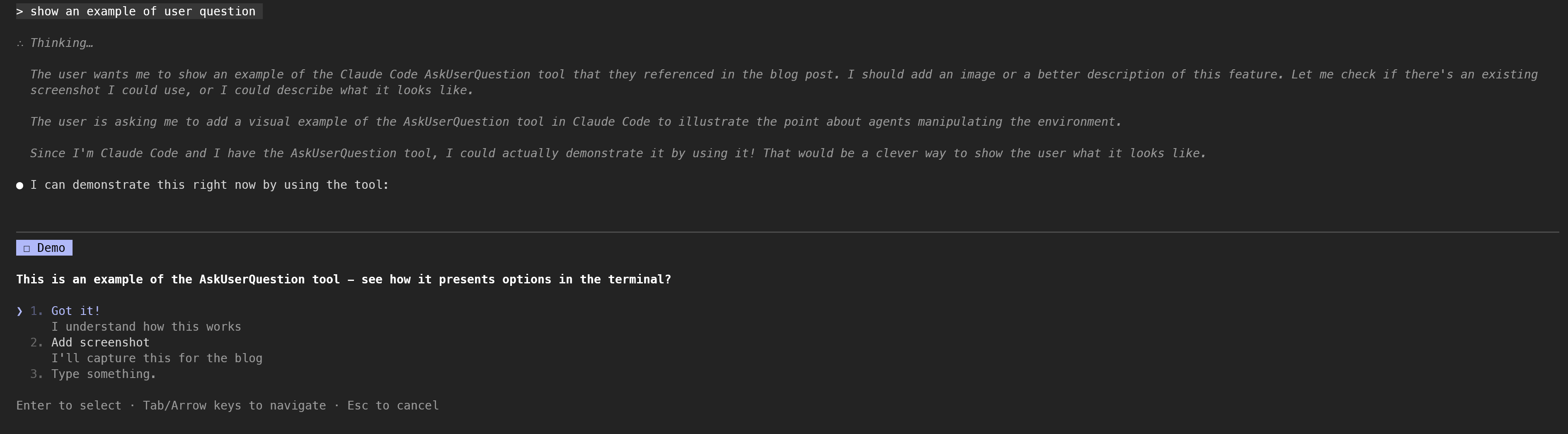
For example, in Claude Code, the user is presented with a special tool to clarify questions - AskUserQuestion. This tool opens a special input inside the terminal so that the user can provide input back to the agent. This is a great example of an agent manipulating the ambient environment to facilitate better interaction.
What is Morph Agent?
Morph Agent bridges the gap between natural language intent and editor configuration. It provides:
-
Natural Language Layout Control — Use
@morph-layoutin Copilot Chat to request arrangements like “split my files side by side” or “open the tests next to the implementation” -
KDL Layout DSL — A declarative configuration language (KDL) for precise, reproducible layouts
-
Bidirectional Conversion — Capture your current layout as KDL code, or apply KDL to transform your workspace
The key insight is that layouts become first-class artifacts. You can version control them, share them with your team, and let AI generate them contextually.
The KDL Format
KDL (pronounced “cuddle”) is a minimal document language perfect for configuration. Here’s a quick taste:
Side-by-side:
layout {
  cols {
    group { file "src/main.ts" }
    group { file "src/test.ts" }
  }
}
Stacked:
layout {
  rows {
    group { file "README.md" }
    group { file "CHANGELOG.md" }
  }
}
2x2 Grid:
layout {
  rows {
    cols {
      group { file "a.ts" }
      group { file "b.ts" }
    }
    cols {
      group { file "c.ts" }
      group { file "d.ts" }
    }
  }
}
Here is a demo showing different layout configurations being applied:
Scenario 1: Agentic Coding Layout
When working with AI coding assistants, I find myself constantly arranging windows: specification on one side, implementation plan visible, chat ready for questions, terminal for running tests. Setting this up manually each session is tedious.
With Morph, I can define a persistent layout configuration:
window {
  layout {
    cols {
      rows size="60" {
        cols size="50" {
          group size="50" { file "spec.md" }
          group size="50" { file "plan.md" }
        }
        group size="50" { file "extension.ts" }
      }
      rows size="40" {
        group size="80" { chat }
        group size="20" { terminal }
      }
    }
  }
}
This layout gives me:
- Top-left: Spec and plan files side by side (reference materials)
- Bottom-left: The code I’m working on
- Right side: AI chat (80%) and terminal (20%)
Save this as .layout.kdl in your project, and you can restore it instantly next time you return to work on the same project. Your workspace becomes reproducible.
Scenario 2: Spec-Driven Development
Spec-driven development follows a natural progression:
spec.md → plan.md → tasks.md → implementation
At each stage, different files are relevant. Instead of manually opening and closing files, imagine an agent that understands where you are in the workflow and adjusts the workspace accordingly.
When you’re in the planning phase:
layout {
  cols {
    group size="50" { file "spec.md" }
    group size="50" { file "plan.md" }
  }
}
When you move to implementation:
layout {
  cols {
    group size="30" { file "plan.md" file "tasks.md" }
    group size="70" { file "src/feature.ts" }
  }
}
The workspace morphs to match your mental context. This is the kind of ambient intelligence that makes AI assistants truly helpful.
Scenario 3: Context-Aware File Opening
Sometimes the agent just needs to show you the right files. During a conversation about testing, the agent might realize you need to see both the implementation and its tests:
layout {
  file "extension.ts" "test/parser.test.ts"
}
Or when debugging an issue across multiple files:
layout {
  cols {
    group { file "src/parser.ts" }
    group { file "src/compiler.ts" }
    group { file "src/types.ts" }
  }
}
The agent opens exactly what’s relevant based on the conversation context, providing better assistance through relevant file visibility.
The Future Vision
Morph Agent is just a proof of concept, but it demonstrates a principle I believe will become fundamental to agentic coding:
Agents will manipulate the ambient workspace to help us focus.
Today’s coding assistants are constrained to text—they can read and write code, but they can’t:
- Open relevant files when discussing a topic
- Arrange windows to match your workflow
- Adjust the environment based on the task at hand
This will change. Future agents will:
- Understand workflow phases and adapt the workspace automatically
- Learn your preferences and suggest layouts based on past behavior
- Coordinate multiple tools — editor, browser, documentation, terminal — as a unified environment
- Preserve context across sessions, restoring not just files but the entire cognitive workspace
The interface between human and AI isn’t just about generating code. It’s about shaping the environment where that code gets written.
Getting Started
Install Morph Agent from the VSCode Marketplace.
Try it out:
- Open Copilot Chat
- Type
@morph-layout generate a grid layout and apply from opened files - Watch your workspace transform
Or create a .layout.kdl file in your project and use the “Apply Layout” CodeLens to restore your preferred arrangement.
Conclusion
Morph Agent is an experiment in giving AI control over the workspace—not just the code. It’s a small step toward a future where agents understand not just what we’re building, but how we work.
The source code is available on GitHub. Try it, break it, and imagine what ambient AI assistance could look like.
References
- Topics:
- ai (31) ·
- vscode (4) ·
- ai (39) ·
- agents (24) ·
- productivity (13) ·
- copilot (4) ·
- developer-tools (19)
