
pi-cost user guide
A walkthrough of the dashboard and /cost commands. For theme authoring, see Theming.
Getting started
pi-cost ships as a pi extension and a standalone npm package. The fastest path is to install it into pi, then drive it with /cost slash commands.
Install
pi install npm:pi-costThis registers the /cost command inside pi. No further configuration is required — the dashboard reads the session logs of the same agent dir as pi (PI_CODING_AGENT_DIR, default ~/.pi/agent). See Session directories.
Start the dashboard
From inside any pi session:
/cost startThe extension spawns the dashboard server in the background on port 5461 (a random port when 5461 is in use) and reports the URL when it is ready. Each agent dir gets its own server: the server writes <agent dir>/cost/server.json with its pid and port, and /cost reads that file.
Open the dashboard
/cost openOpens the dashboard in your default browser, and starts the server first when it is not running. The Overview view loads with aggregate spend across every project pi has touched.
That's it — the rest of this guide describes what you'll see and how to navigate it.
Without pi
If you don't use pi (or just want to peek at the UI), run the server directly:
npx pi-cost                                  # http://localhost:5461, or a random port when it is in use
npx pi-cost --port 5470 --host 127.0.0.1     # exact port; exits when it is in use
npx pi-cost --open                           # also open the browser
npx pi-cost --session-dir ~/my-sessions      # read a custom (flat) session dir
The dashboard is empty unless the agent dir holds session JSONL. --host 0.0.0.0 --allowed-hosts=<name> exposes it to the network; there is no authentication, so do that only on a network you trust.
Command line
pi-cost <command> prints the same numbers as the dashboard. It asks the running server of the agent dir (COST_URL, else <agent dir>/cost/server.json); with none, it parses the session files.
| Command | What it prints |
|---|---|
pi-cost overview | Total cost, by model, by day, top projects. --compare adds the window before. |
pi-cost insights | Run rate, 5-hour blocks, subagent share, compactions, top tools |
pi-cost projects | Projects by cost |
pi-cost sessions [<project>] | Sessions by cost with their ids. --match <text> filters by title. |
pi-cost agents | Subagent runs grouped by agent name |
pi-cost session <id> | One session: totals, subagent runs, costliest turns |
Common flags: --range today|24h|<n>d, --from YYYY-MM-DD --to YYYY-MM-DD, --project <name>, --top <n>, --json. The window defaults to --range, else PI_COST_RANGE, else cli.defaultRange in <agent dir>/cost/settings.json, else 7d. Run pi-cost help <command> for details.
Slash commands
Run from inside pi (the extension registers /cost):
| Command | What it does |
|---|---|
/cost start | Start the local server in the background |
/cost stop | Stop the server of this agent dir |
/cost restart | Restart the server (picks up theme/config changes) |
/cost status | Show the URL, pid and agent dir of the server |
/cost open | Open the dashboard in the default browser |
Layout
The topbar has two tabs (Overview, Insights) and a date range picker. The picker has presets (today, 24 hours, 7/30/90 days, all time) and a two-month calendar for a custom from/to window. The choice is kept across reloads.
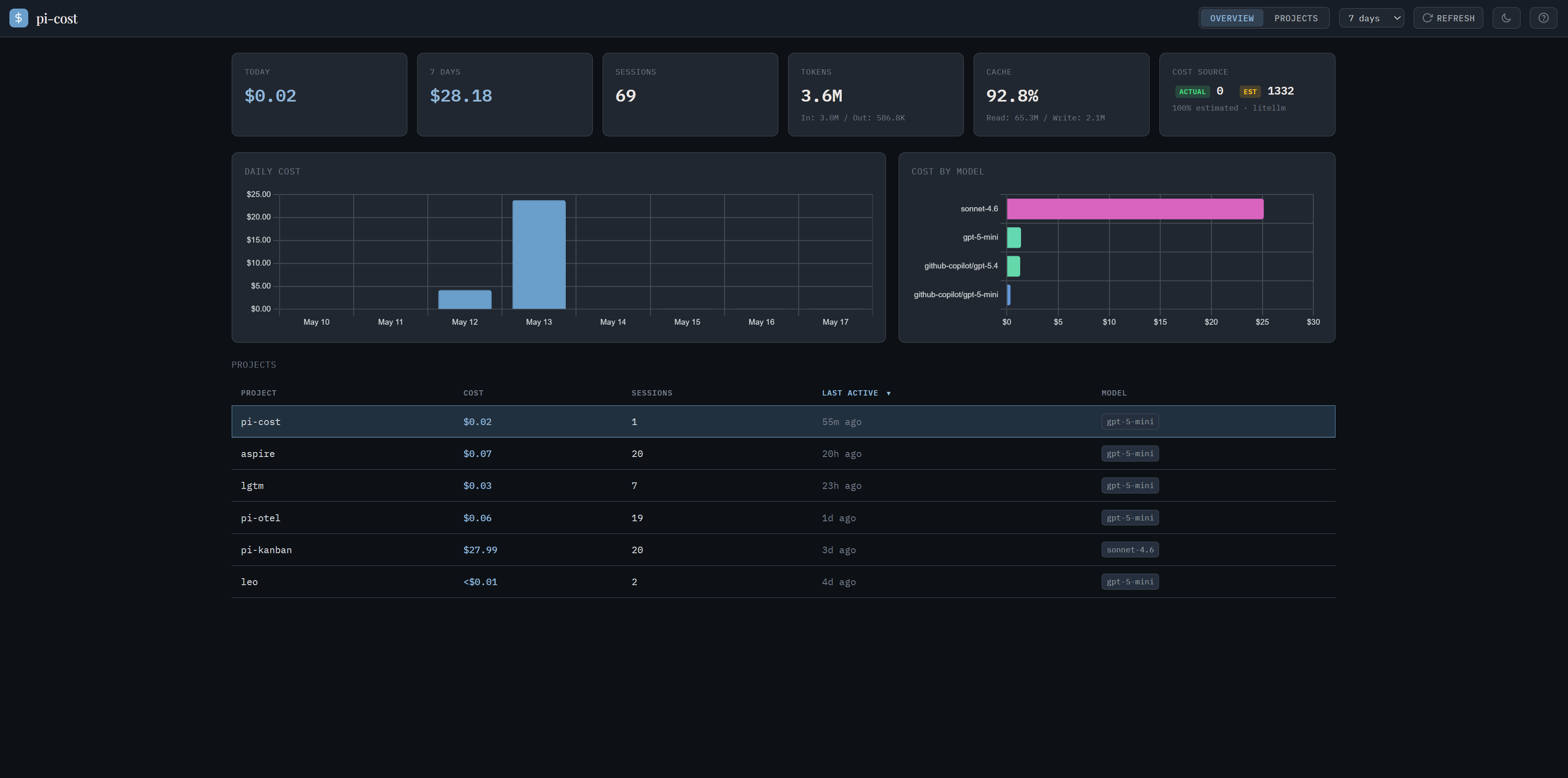
Overview — /
Aggregate spend across all projects, a cost chart stacked by model (hourly for one day, daily otherwise), and per-model and per-project breakdowns. The landing view.
Insights — /?view=insights
Monthly run rate, cache savings, subagent share, compactions, token composition, top tools, a 7 × 24 activity heatmap, weekly cost and 5-hour blocks. pi has no rate-limit data, so a block is a heuristic: it starts at the hour of the first message and lasts 5 hours.
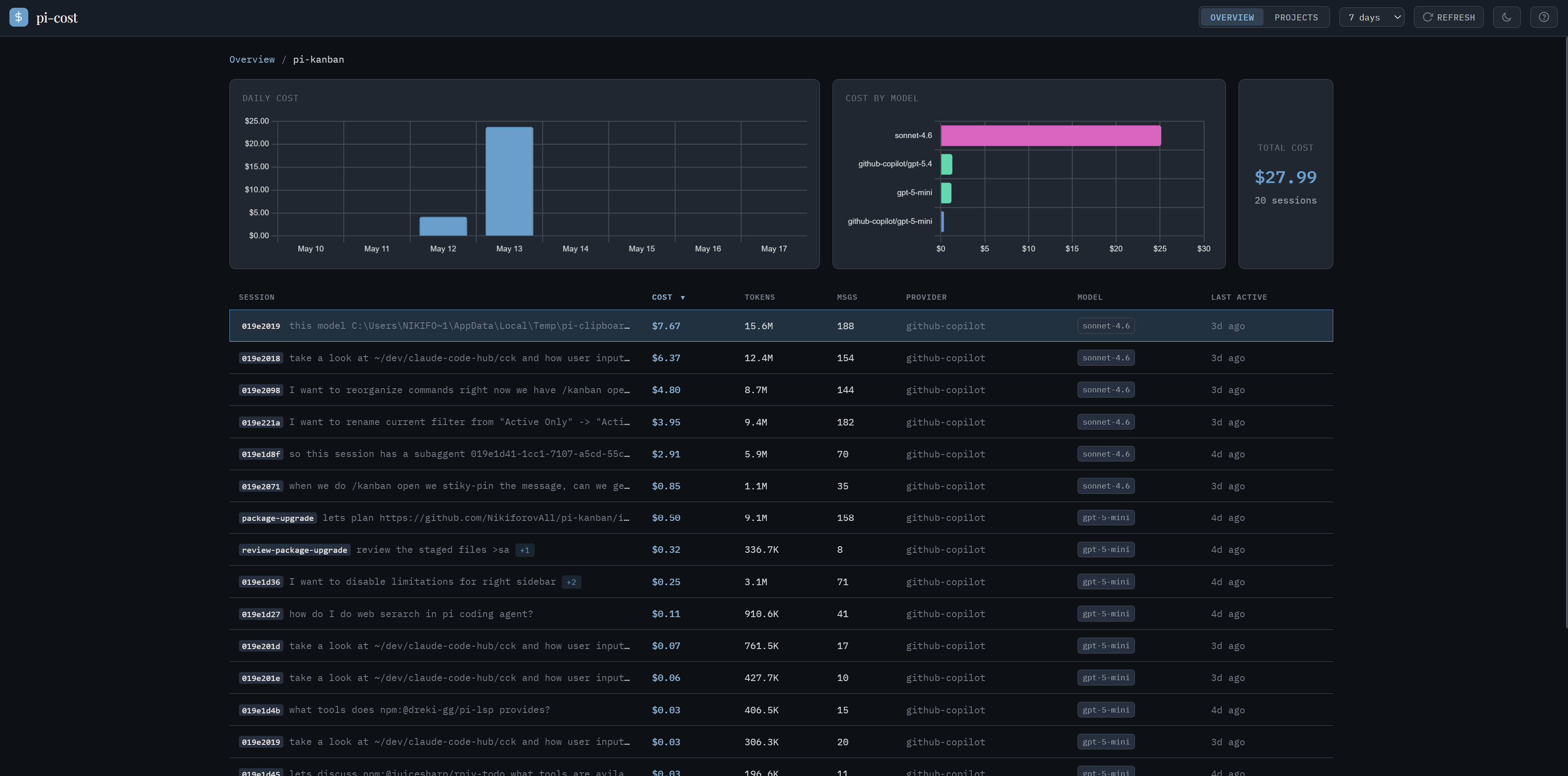
Project — /?view=sessions&project=<encoded>
Per-session list for one project, plus model totals for that project. Click a project in the Overview to open it. <encoded> is the URL-encoded project directory (pi encodes paths like --C--Users-foo-bar-- ↔ C:\Users\foo\bar).
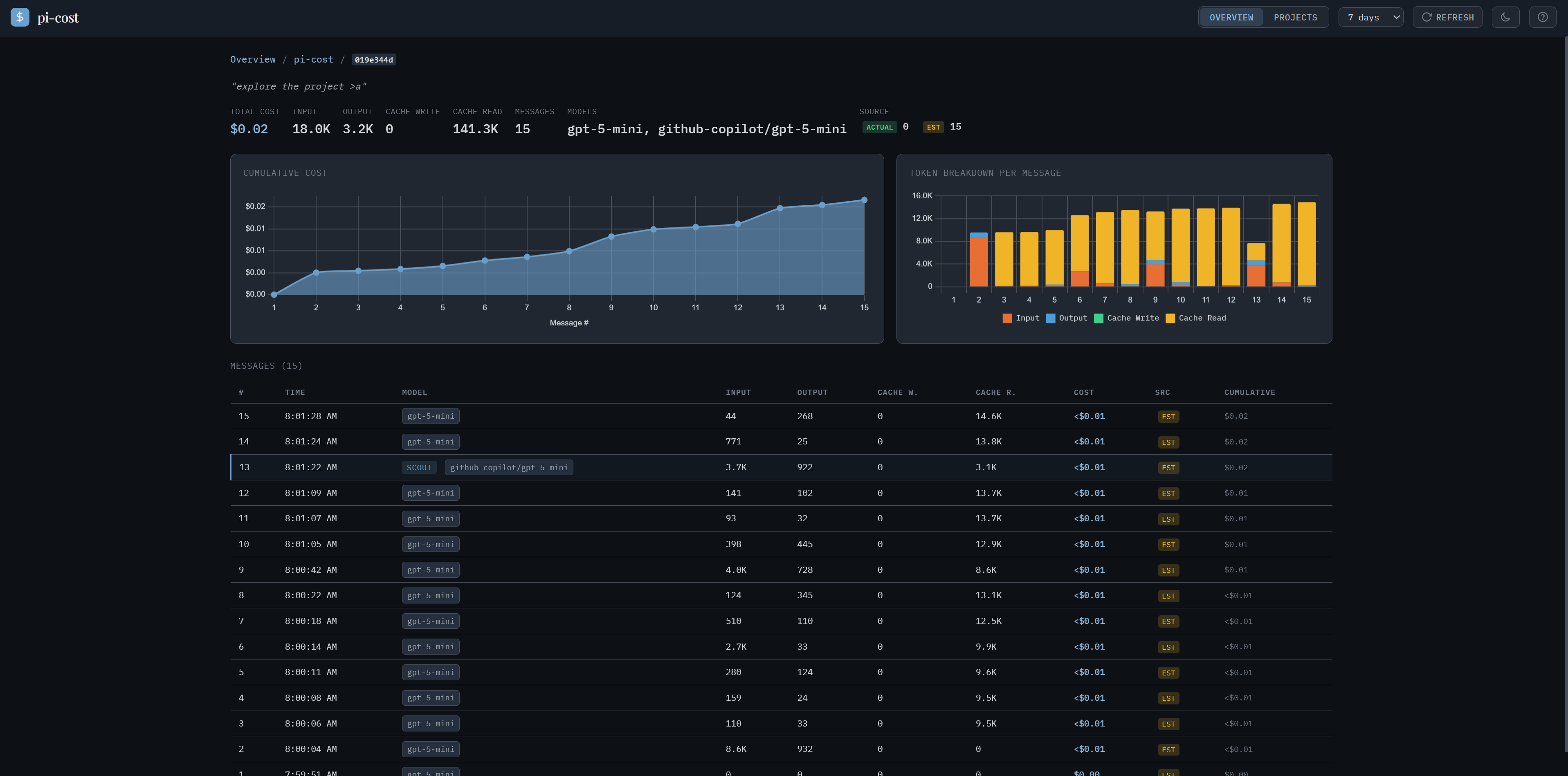
Session — /?session=<id>
Per-message detail: model, tokens (input / output / cache read / cache write), and cost with a source badge. The page also shows tools per turn, compactions (with the cost of the summary call when pi recorded it), pi-subagents runs (click one to open the nested run), forked sessions, and a cumulative cost chart. A session with more than 25 messages gets a range brush: drag it, or use ← / →, Shift+←/→, Home and End.
Cost sources
Every message is tagged so you know where the number came from:
| Badge | costSource | Meaning |
|---|---|---|
| actual | jsonl | pi recorded a real price in the JSONL (dial, exa). |
| estimated | pricing | Computed from token counts × LiteLLM pricing (refreshed every 6 hours, offline fallback bundled). Used for subscription-billed providers like github-copilot and the auto router. |
| — | none | No usage data — typically a tool/system message. |
The per-message fallback chain:
usage.cost.total > 0→ actual- else
pi-pricinglookup against the LiteLLM table → estimated - else
0→ none
Session and project totals sum across all three, so subscription providers always get a nonzero estimate. Badges render inline in the session view above — look for jsonl / pricing chips next to each row's cost.
Themes
Press t (or the topbar toggle) to flip between light and dark mode. The palette button next to it picks a color theme family (pi.dev, Classic, Gruvbox, Catppuccin, Tokyo Night and more); the choice is saved in the browser. Same session, two looks:
| Dark | Light |
|---|---|
| 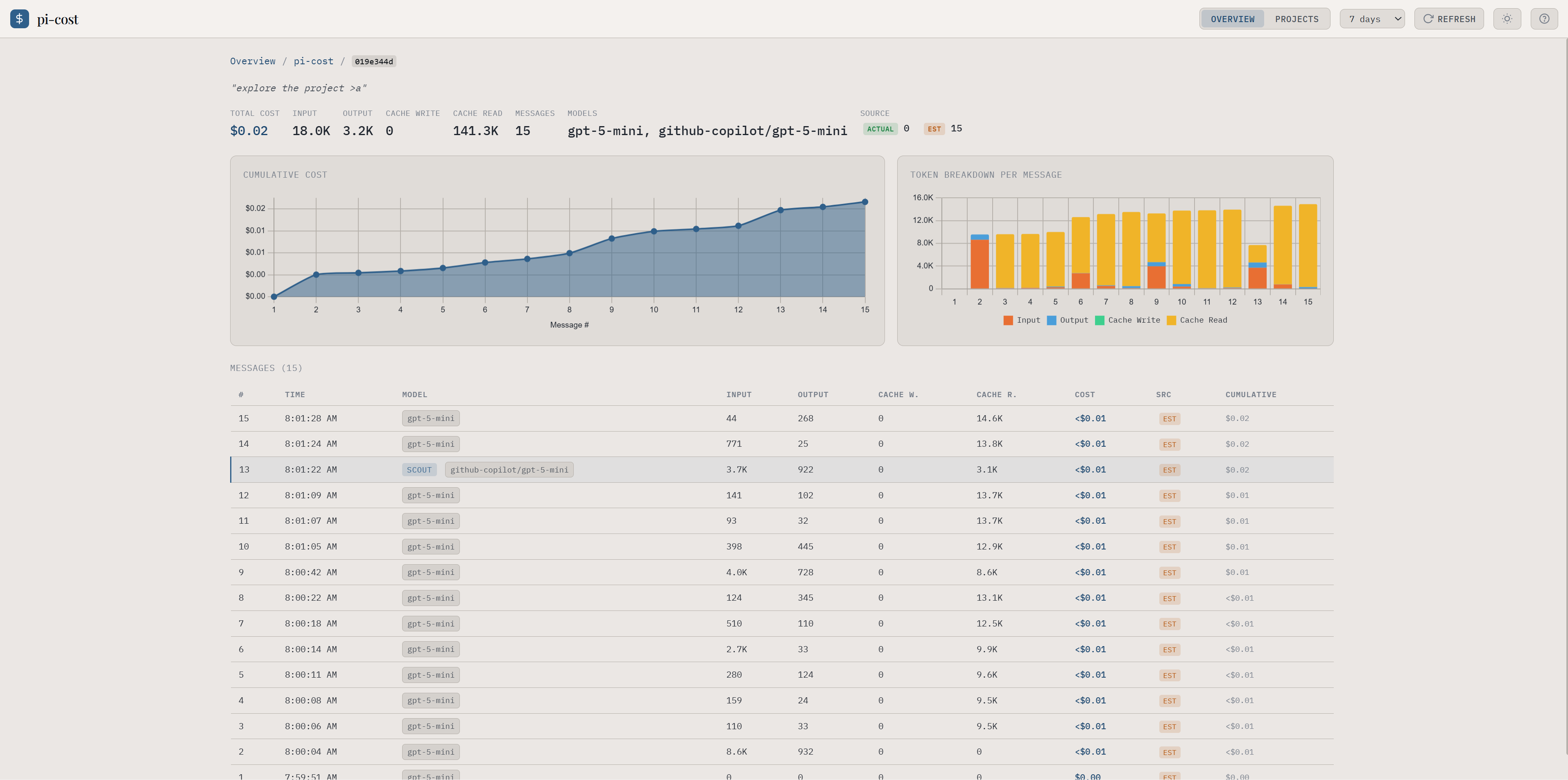 |
18 built-in theme families ship out of the box; drop your own JSON in ~/.pi/agent/cost/themes/. See Theming.
Refreshing data
- The server keeps a parsed model of each session file until its size or mtime changes, and caches each API response for 30 seconds.
- The page refreshes stale data every 30 seconds while it is visible.
- Press
rin the dashboard, orPOST /api/refresh, to drop the caches and re-scan JSONL. - No file watcher / SSE.
Keyboard shortcuts
Press ? in the dashboard for the full list.
| Key | Action |
|---|---|
1 / 2 | Overview / Insights |
j / k | Next / previous row |
Enter | Open selected row |
← / → | Pan the session range brush |
Esc / Backspace | Back / close modal |
r | Refresh data |
t | Toggle dark / light theme |
? | Show help |
Configuration
Settings live in <agent dir>/cost/settings.json (default ~/.pi/agent/cost/settings.json):
{
  "themes": { "light": "pi-light", "dark": "pi-dark" },
  "cli": { "defaultRange": "30d" }
}
Environment variables (take precedence — useful for one-off runs):
| Variable | Effect |
|---|---|
PI_CODING_AGENT_DIR | Agent dir (default ~/.pi/agent) |
PI_CODING_AGENT_SESSION_DIR | Custom session dir (see below) |
COST_LIGHT_THEME | Theme ID used in light mode |
COST_DARK_THEME | Theme ID used in dark mode |
COST_THEME_DIR | Directory to load user themes from |
PI_COST_RANGE | Default window of pi-cost <command> |
COST_URL | Server that pi-cost <command> asks |
PI_COST_OFFLINE=1 | Use the bundled prices, do not fetch LiteLLM |
The server listens on port 5461 by default (sibling project pi-kanban uses 3460 — they don't collide).
Session directories
pi-cost follows pi's precedence: --session-dir, then PI_CODING_AGENT_SESSION_DIR, then sessionDir in <agent dir>/settings.json. A custom dir is flat (<dir>/<timestamp>_<id>.jsonl), and the project comes from the cwd in each session header. The default <agent dir>/sessions/ stays in the list, because sessions written before a custom dir was set are still there. pi resolves a relative sessionDir in settings from the working directory of each pi run, which pi-cost does not know, so pi-cost uses that setting only when it is an absolute path.